


Your iPhone is now your Cardaq card.
An easy, secure, and private way to pay.
Apple Pay lets you make purchases with your Cardaq card using any Apple device — just like you would with your physical card — in stores, online, and in apps.
Apple Pay lets you make purchases with your Cardaq card using any Apple device — just like you would with your physical card — in stores, online, and in apps.
Apple Pay on one.
Apple Pay on all.
Apple Pay is built into iPhone, Apple Watch, Mac, iPad, and Apple Vision Pro. If you add your Cardaq card to Apple Wallet on iPhone, you’ll have the option to add it to your other Apple devices in one easy step.
Shop in person.
Online. Or in apps.
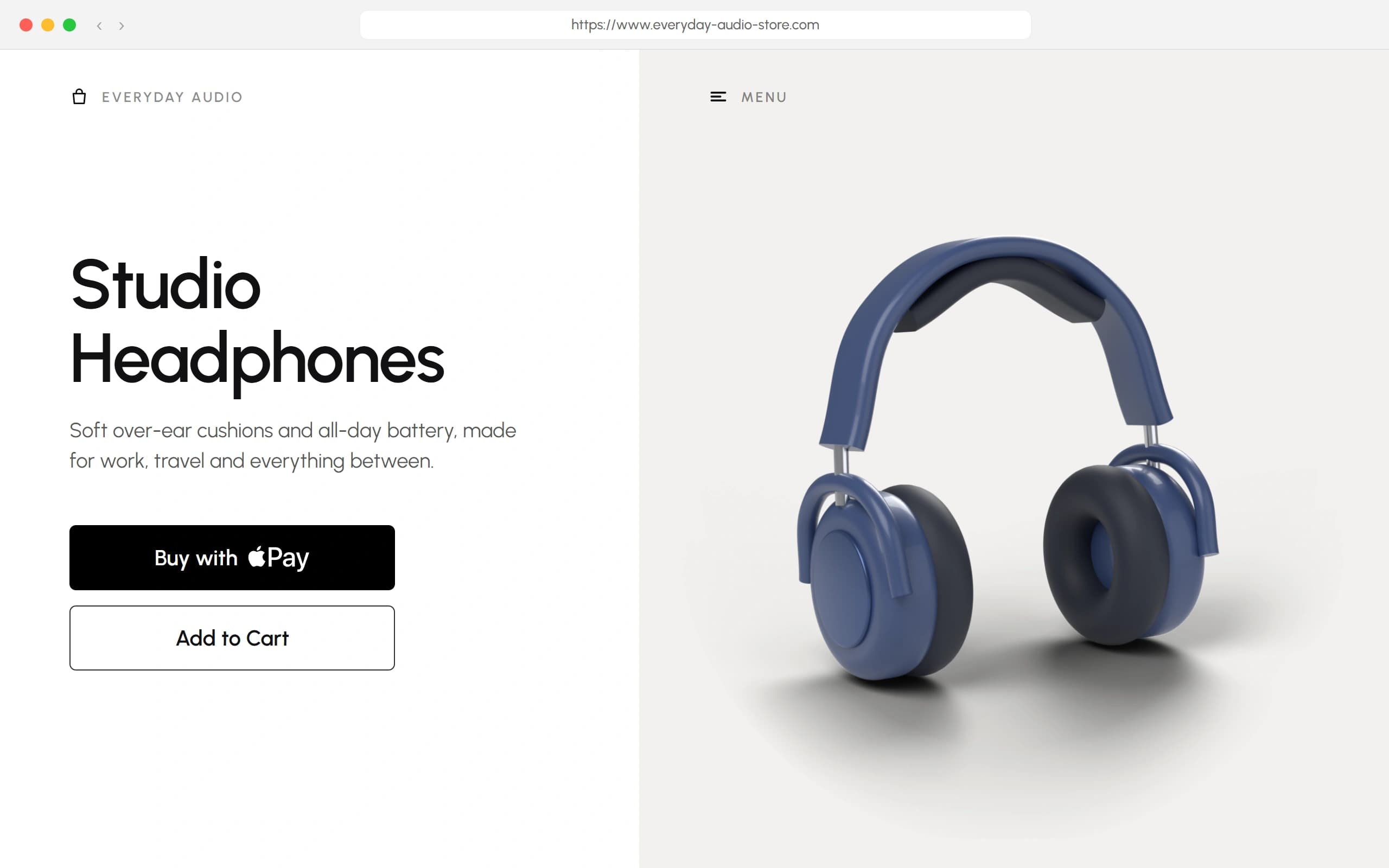
Apple Pay is accepted by millions of merchants around the world. Just look for Apple Pay or the contactless payment symbol at checkout and pay with your Cardaq card. To check out with Apple Pay if you’re on a computer but not using Safari or a Mac, click the Apple Pay button and scan the code that appears onscreen with your iPhone.◊
Tap. Pay. Done.
Apple Pay lets you skip entering your address or CVC code at checkout — so you can pay with your Cardaq card with a simple glance or touch.
Designed to be secure.
So only you can pay.
Apple Pay transactions require authentication through your device’s built-in security features — including Face ID, Touch ID, and your passcode. Your debit or credit card number is never shared with merchants by Apple or stored on Apple servers. And, if you misplace your iPhone, you can quickly mark it lost on Find My to suspend your Cardaq card.
Add your Cardaq card in a few steps.
- 01
Open Apple Wallet on your iPhone.
- 02
Tap the Add (+) button, then tap Debit or Credit Card.
- 03
Follow the steps on the screen to add a new card.
An eligible Cardaq card and a compatible device are required.
◊ Legal disclaimers
Apple Pay in More Browsers: Available with participating merchants on compatible browsers. Compatible browsers require WebSocket support. This feature is not available in all markets. Software requirements apply. To ensure you have all features of this product, update your iPhone or iPad to the latest software version.
Apple Pay is a service provided by Apple Payments Services LLC, a subsidiary of Apple Inc. Neither Apple Inc. nor Apple Payments Services LLC is a bank. Any card used in Apple Pay is offered by the card issuer.
To use Apple Pay you need a supported card from a participating card issuer. To check if your card is compatible with Apple Pay, contact your card issuer.
Apple Pay is not available in all markets. See apple.com/ios/feature-availability/#apple-pay for more information.
Features are subject to change. Some features, applications, and services may not be available in all regions or languages and may require specific hardware and software. See apple.com/ios/feature-availability/#apple-pay for more information.